
ANYWAYS Documentation
Get started
Section titled “Get started”ANYWAYS lets you change the road network and see how traffic responds. In this get started guide, you’ll create your first project, build a scenario, make a simple road network change, and simulate traffic.
Step 1: Create your first project
Section titled “Step 1: Create your first project”Create an account at anyways.eu/signup. Once logged in:
- Click New Project
- Zoom to or search for an area you’re interested in
- Click Create Project
You will see this:
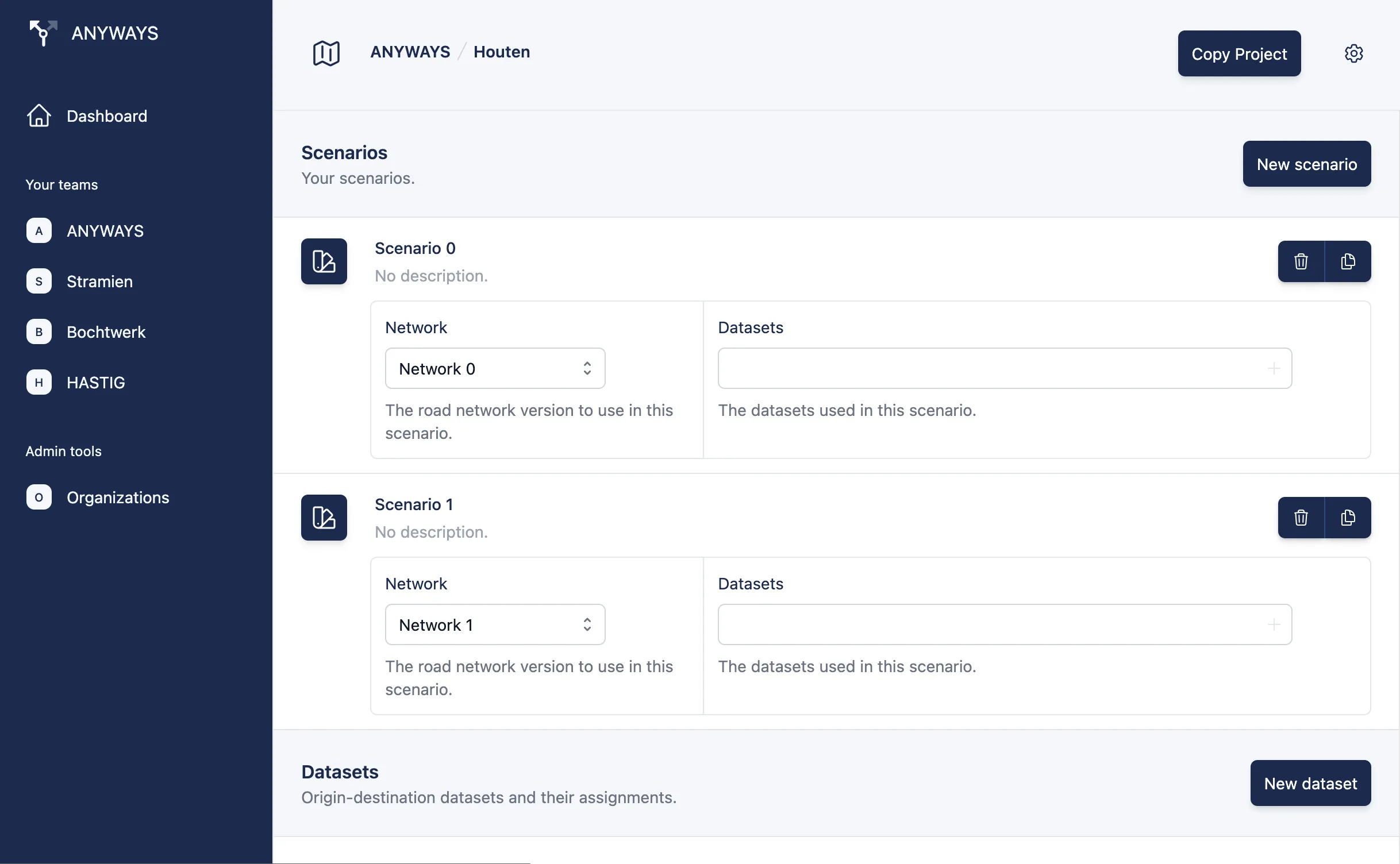
Project view with a brand new empty project.
Step 2: Build a scenario
Section titled “Step 2: Build a scenario”Each new project starts with two scenarios. Scenarios let you test different “what-if” changes in the same area.
To open a scenario:
-
Open Scenario 1 by clicking the scenario button. Scenario 0 will later be used as the reference.

-
An empty map will open
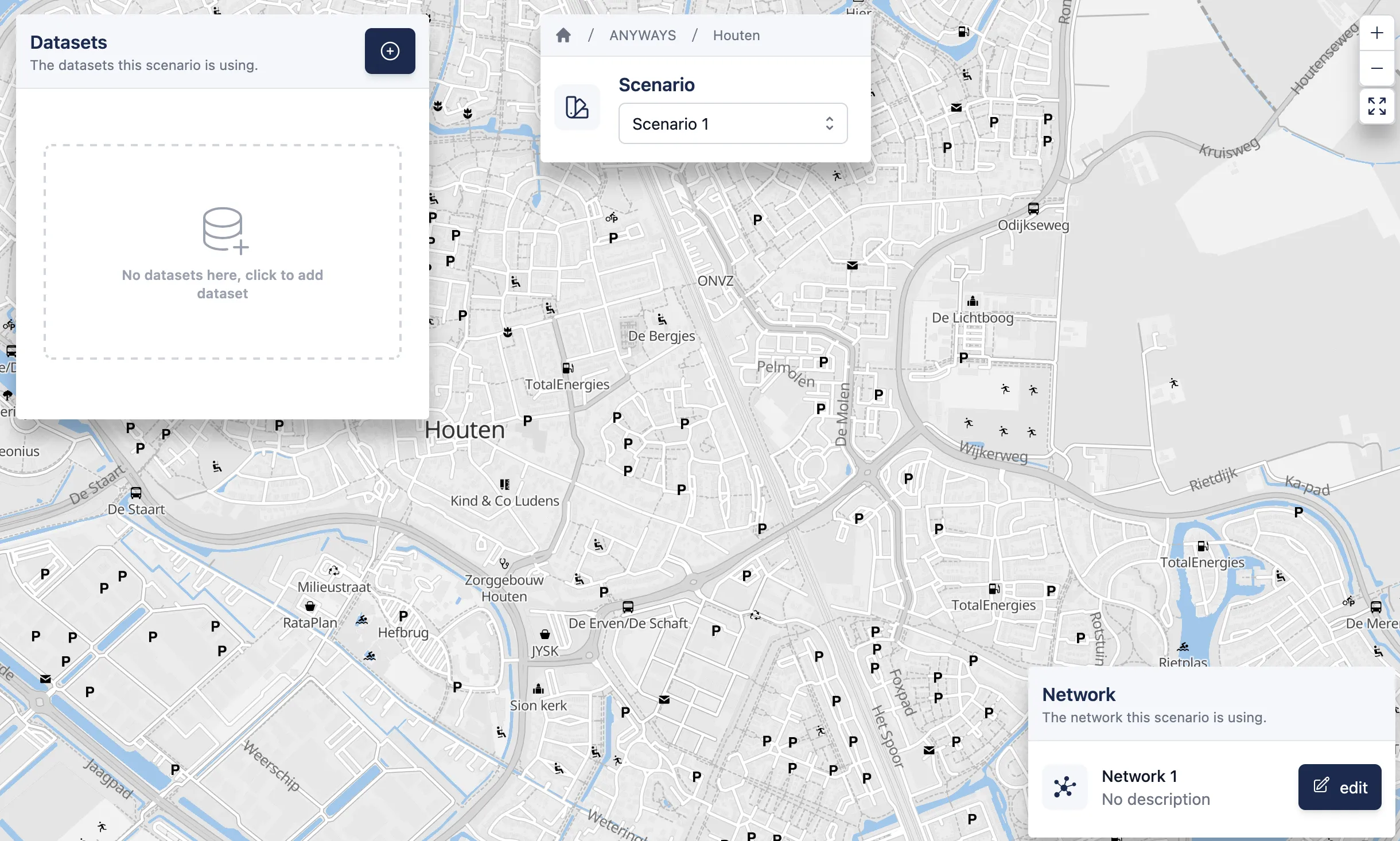
A new empty scenario.
Step 3: Close a road
Section titled “Step 3: Close a road”Now you’ll make your first road network change.
- Click Edit in the bottom-right corner
- Zoom in on a road segment
- Click the road to select it
- Click Closed to close the road for all traffic
- Click Save changes.
In the example below, the road segment is set to Closed:
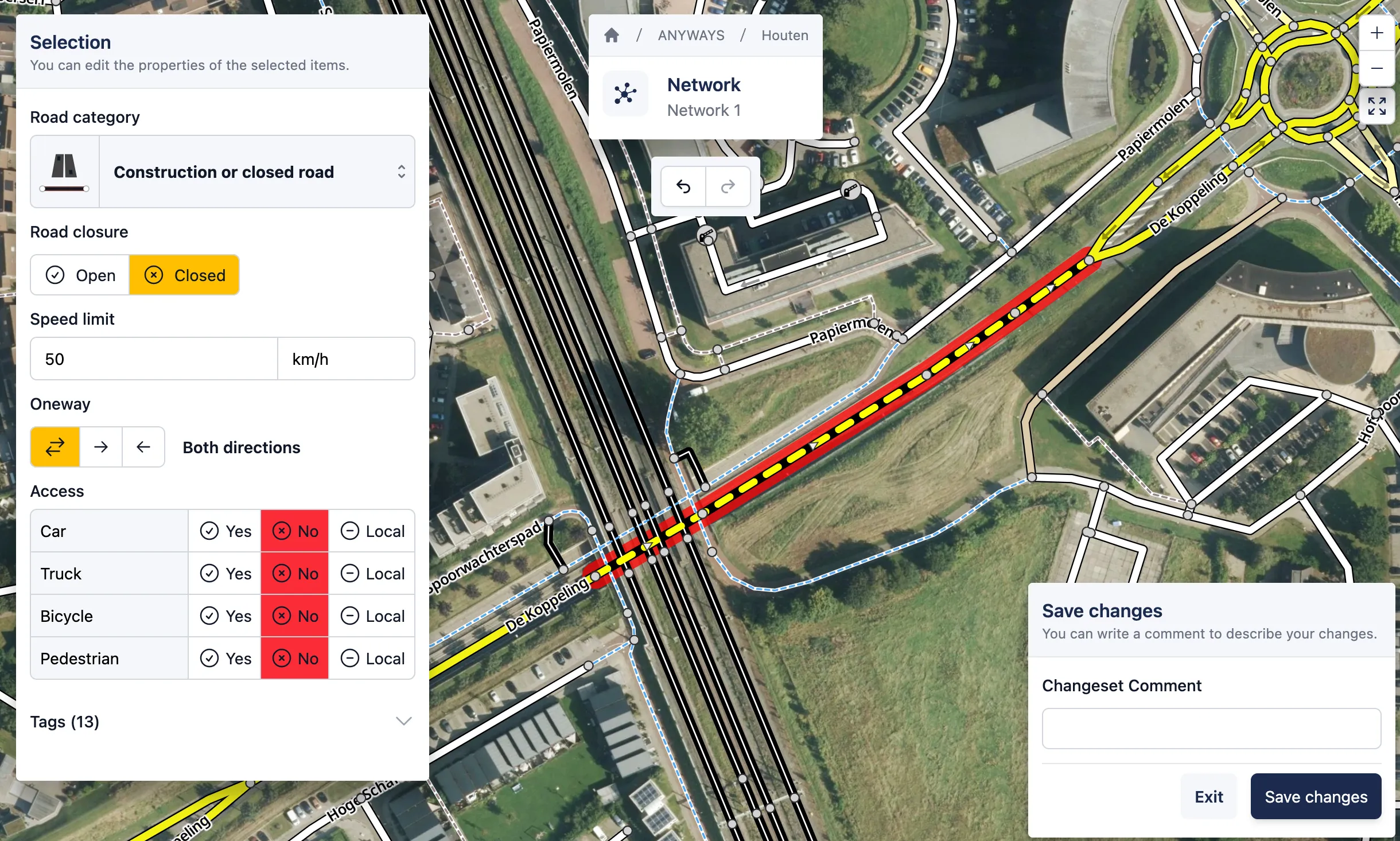
The road network editor open with a road segment selected and set to Closed.
✅ Congrats! — you’ve made your first edit in ANYWAYS.
Step 4: Simulate traffic
Section titled “Step 4: Simulate traffic”To simulate traffic in ANYWAYS, you need to create a dataset.
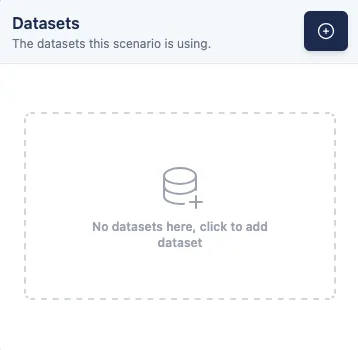
The empty datasets widget in a scenario.
We start with the simplest case, a location dataset. A locations dataset lets you simulate trips to or from a single location by generating origins or destinations around it.
- Click add dataset
- On the top left set the parameters as you wish or leave them default. Choose the direction Towards or Away from
- Click on the map to select the location
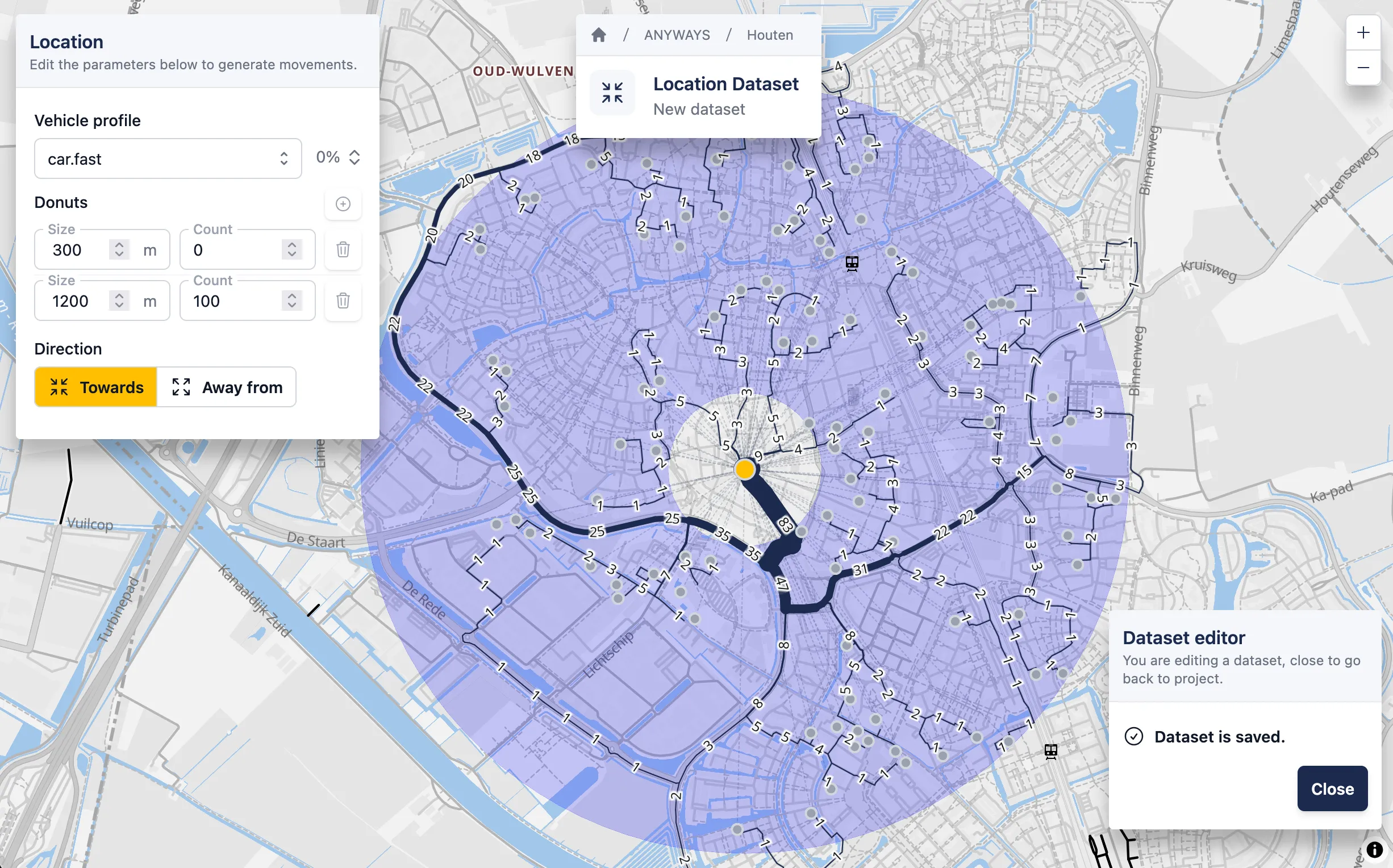
Simulated traffic with routes to a supermarket.
✅ That’s it — you’ve created a complete scenario and simulated traffic in ANYWAYS.
What’s next?
Section titled “What’s next?”You’re ready to explore more advanced workflows in ANYWAYS. Continue with one of the guides below:
-
Simulate traffic
Create one or more datasets and evaluate how trips are assigned to the network within a scenario.
-
Edit the road network
Make additional or more advanced changes, such as changing direction, access restrictions, or speed limits.
-
Explore routes
Manually test and compare routes through the network using the route planner.
-
Model delays
Slow down specific stretches of road for a scenario — rush-hour bottlenecks, congestion, signal delays — without editing the underlying network.
→ Delays
Looking for details?
Section titled “Looking for details?”If you already know what you’re looking for:
- Guides: step-by-step instructions for specific tasks
- Scenarios: Build scenarios, compare before and after.
- Simulate Traffic: To simulate traffic you can add or create datasets.
- Road Network Editing: Make changes to the road network.
- Using the route planner: To study specific routes or quickly explore network changes you can use the route planner.
- Delays: Slow down specific stretches of road for a scenario without editing the underlying network.
- Reference: precise definitions, parameters, and edge cases.
- QGIS plugin: Work in your own way in QGIS. Use whatever data it is you have and combine ANYWAYS route calculations with all your GIS data.