
Comparing scenarios
ANYWAYS lets you compare two scenarios side-by-side to see exactly how traffic changes when you modify the road network.
Step 1: Open a scenario
Open the scenario you want to use as the current view (typically the scenario with your changes).
Step 2: Set a reference scenario
In the datasets panel on the left, look for the comparison section. Click to pick a reference scenario (typically your baseline, e.g. Scenario 0).
Once selected, ANYWAYS loads both scenarios and shows them together.
Step 3: Switch between views
Use the Current and Reference toggle cards to switch between three view modes:
- Current only — shows only the traffic from the current scenario
- Reference only — shows only the traffic from the reference scenario
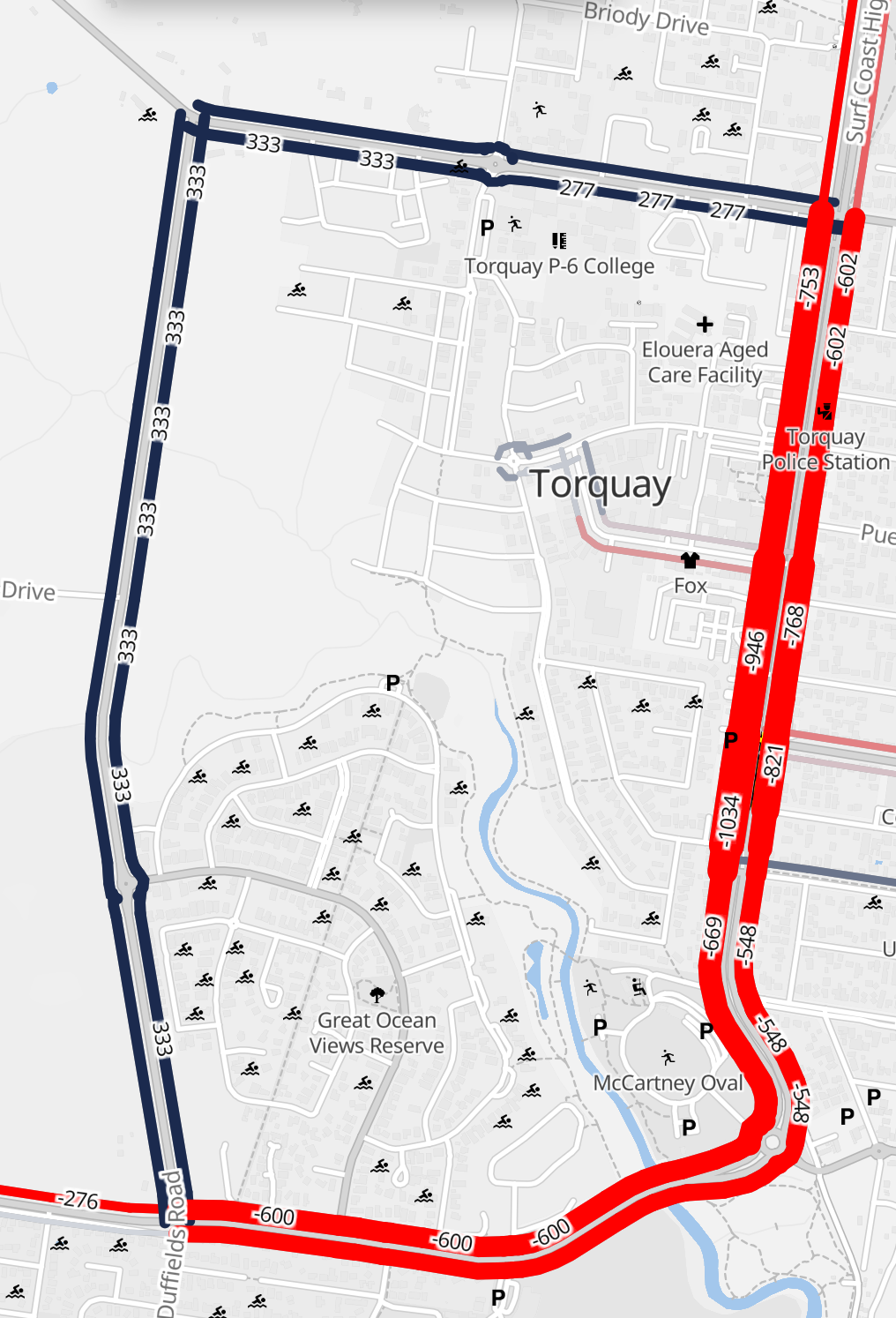
- Both visible (difference mode) — every road segment is colored by how much traffic increased or decreased compared to the reference
Understanding the difference view
In difference mode:
- Segments colored in the current scenario color have more traffic than the reference (traffic increased)
- Segments colored in the reference scenario color have less traffic (traffic decreased)
- Line thickness represents the magnitude of the difference
This immediately shows you where traffic shifts when a road is closed, a speed limit changes, or a one-way is introduced.
Step 4: Fine-tune the visualization
- Change colors: click the color swatches on the Current and Reference cards to customize
- Importance threshold: use the slider to hide small differences and focus on the biggest changes
- Toggle layers: show/hide current or reference independently
Tips
- Compare before and after: the most common use case is comparing a baseline (no changes) against a scenario with road closures or modifications.
- Multiple comparisons: you can change the reference scenario at any time to compare against different alternatives.
- Settings are saved: your comparison preferences (colors, reference scenario, view mode) are saved with the scenario and restored when you reopen it.