
Delays
Delays let you slow down traffic on specific stretches of road for a scenario, without editing the underlying network. Draw lines on the map, assign a slowdown to each — either a maximum speed (km/h) or a fixed delay in seconds — and every routing calculation in the attached scenario will treat those edges as slower.
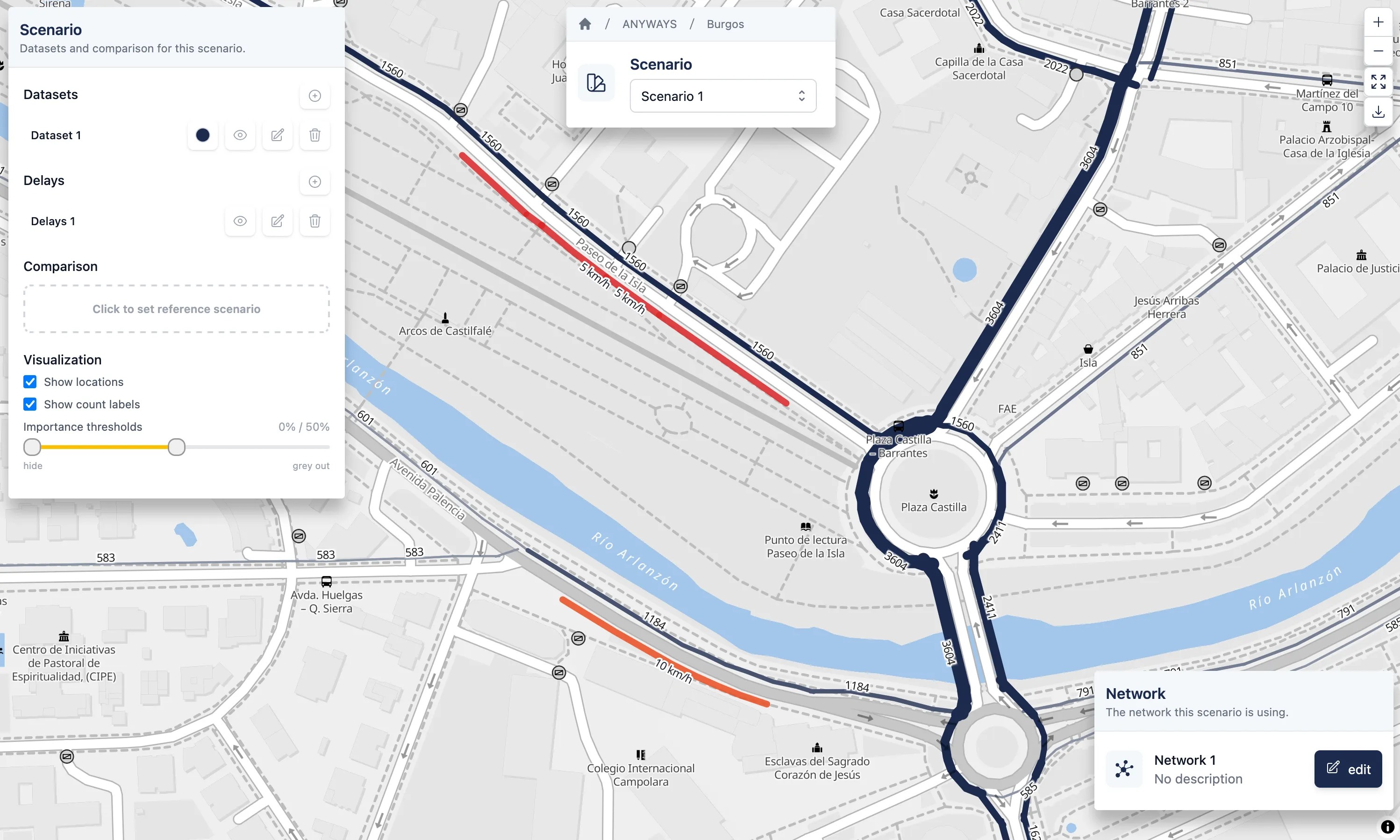
A scenario with delays applied.
What are delays?
Section titled “What are delays?”Each delays lives inside a project (like networks and datasets) and belongs to a specific network. Every line inside a delays has one of:
- Max speed (km/h) — caps the effective speed on the matched road edges. Use for signposted speed limits, temporary reductions, or generally slow segments.
- Delay (seconds) — adds a fixed penalty to the matched edges regardless of length. Use for turn delays, level crossings, or unpredictable bottlenecks.
The snapped preview in the editor shows exactly which road edges will be affected as you draw.
When to use delays vs. edit the road network
Section titled “When to use delays vs. edit the road network”- Delays — temporary slowdowns, congestion patterns, incident scenarios, weather impacts. Fast to try, non-destructive, and applied per scenario.
- Road network editing — permanent changes such as a new one-way, a closed road, or an updated speed limit. Baked into the scenario’s road network.
You can combine the two: a network with construction closures on Scenario 1 + delays for a temporary bottleneck upstream.
Typical workflow
Section titled “Typical workflow”- Create delays in your project’s Delays section and draw the lines on the map.
- Attach the delays to a scenario using the Delays column on the project page.
- Open the scenario and see the snapped overlay + routes recalculated through the delayed network.
- Compare against a baseline scenario without delays to see the traffic impact.
Attaching delays to a scenario
Guides
Section titled “Guides”-
Creating delays — Draw lines and assign a max speed or delay.
-
Attaching delays to a scenario — Apply the slowdowns to a scenario’s routing.