
This guide explains how to edit the road network in ANYWAYS.
Open the road network editor
You can open the editor in two ways:
- From the project overview: Click Edit next to the network you want to change.
- When a scenario is open: Click Edit in the bottom-left corner of the map.
The road network editor will open.
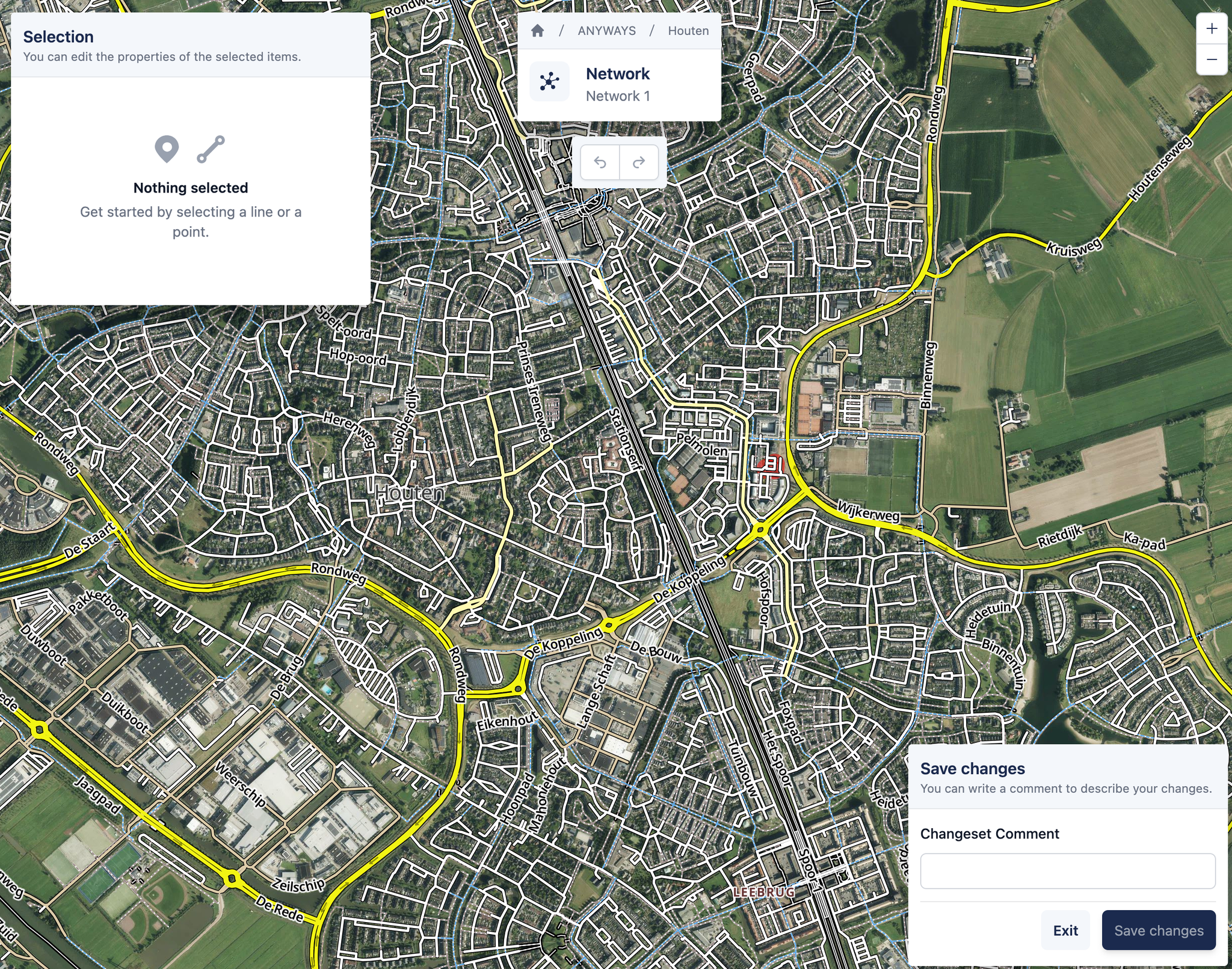
Edit a road segment
The steps below apply to all road network segment edits.
1. Select a road segment
- Zoom in on the road network
- Click on a road segment to select it
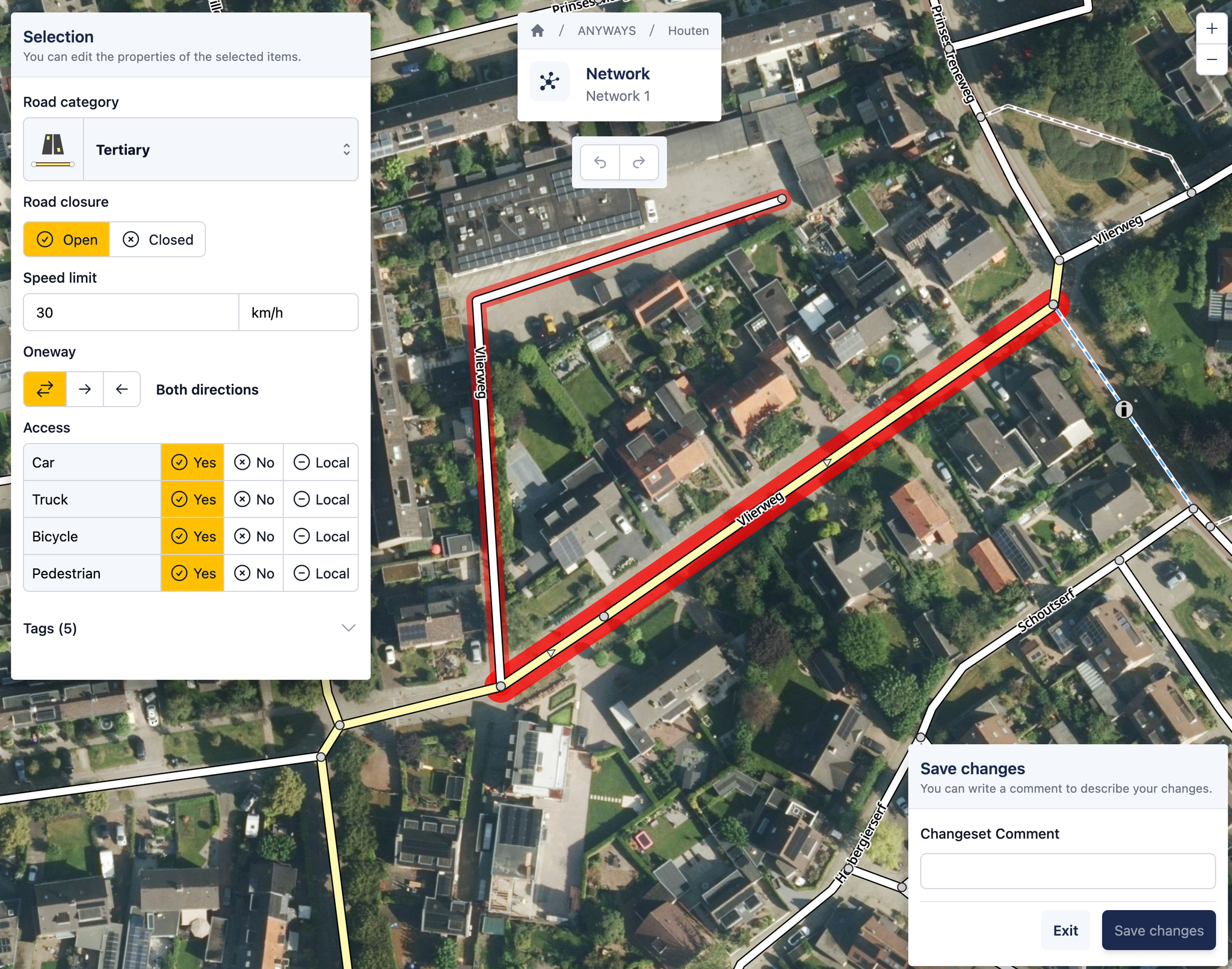
The properties of the selected segment are shown.
2. Change road properties
Edit one or more properties of the selected road segment. You can:
- Change the maximum speed
- Edit the road classification
- Set access restrictions per vehicle type
- Close or open the road to traffic
- Change the direction (one-way or two-way)
3. Save your changes
Click Save changes to apply the edits to the network.
The road network is now updated and can be used in scenarios, route planning, and traffic simulation.
What’s next
After editing the road network, you can:
- Simulate Traffic to see how the changes affect traffic patterns
- Using the route planner to compare routes using the route planner