
This guide shows how to create a dataset of an assigned OD matrix (i.e. simulated traffic) based on observed traffic counts. The resulting traffic counts dataset represents traffic demand and defines how that traffic behaves when it is evaluated in a scenario.
When should I use this
Use a traffic counts dataset when you want to simulate existing traffic conditions based on observed traffic counts.
This dataset type is typically used for:
- Establishing a base traffic situation
- Analysing how changes to the road network affect current traffic patterns
Before you start
You need:
- A project
- Traffic counting data: junction traffic counts or single direction link counts from loops or other traffic counting equipment
Steps
1. Start a new traffic counts dataset
- Open your project
- Click New dataset
- Select Traffic counts dataset
- Enter a name for the dataset
The dataset editor will open.
2. Configure assignments
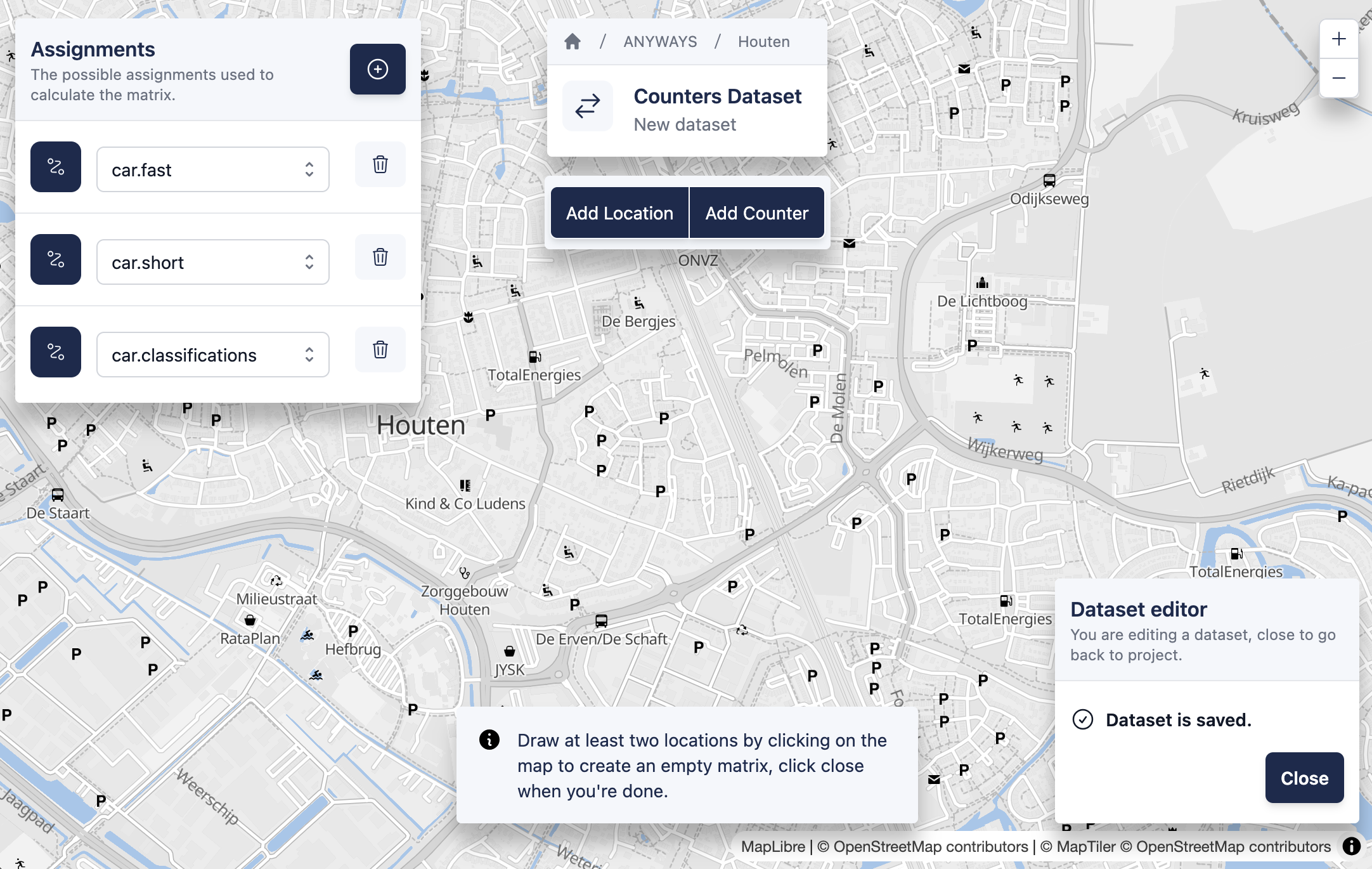
In this step, you define the possible assignments that can be used to estimate traffic demand.
Assignments define the vehicle routing behaviour that is used to calculate the traffic matrix. Using various routing profiles results in more possible paths between origin and destination.
By default, assignments for car traffic are configured using the following vehicle profiles:
car.fast
car.short
car.classifications
These profiles represent different routing behaviours for cars. The fastest route, the shortest route and a route that respects road classifications, i.e. it assumes people prefer the highest road hierarchy.
You can add or remove assignments to control which vehicle behaviours are considered during the ‘fitting’ process.
In this version of the app, only car assignments can be used.
3. Add possible origin and destination locations
In this step you define a set of locations that may act as origins, destinations, or both. These locations define the possible trips in the network.
Before adding locations, consider the following guidelines:
- Select key incoming and outgoing locations on the main roads around the study area
- Include locations that represent major access points to the area
- When a road is a dual carriage way you can constrain a location to be just an origin or just a destination.
- Optionally add a small number of relevant locations within the study area, they represent locations that produce or attract traffic.
The goal is to provide enough diversity of possible routes for the fitting process.
Initially, all possible trips between these locations have a traffic count of zero.
Add the selected locations to the dataset by:
- Clicking Add Location at the top of the screen
- Clicking on the map to add a location
You can move or delete the locations after you entered them at all times.
4. Add traffic counters
Add traffic counters at locations where traffic counts are available.
Per road segment
To add a traffic counter to a road segment:
- Click Add counter at the top of the screen
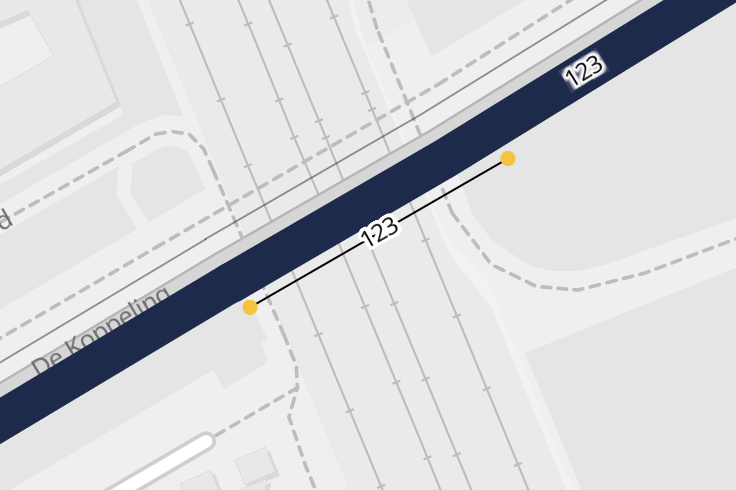
- Draw a short line next to the road where traffic was counted
- Draw the line in the direction of travel of the counted traffic
- Enter the counted number of vehicles in the small popup window that appears after drawing
At an intersection
To add traffic counts on an intersection:
- Click Add counter at the top of the screen
- Draw the line of the counter from the incoming link to the outgoing one
- Enter the counted number of vehicles in the small popup window that appears after drawing
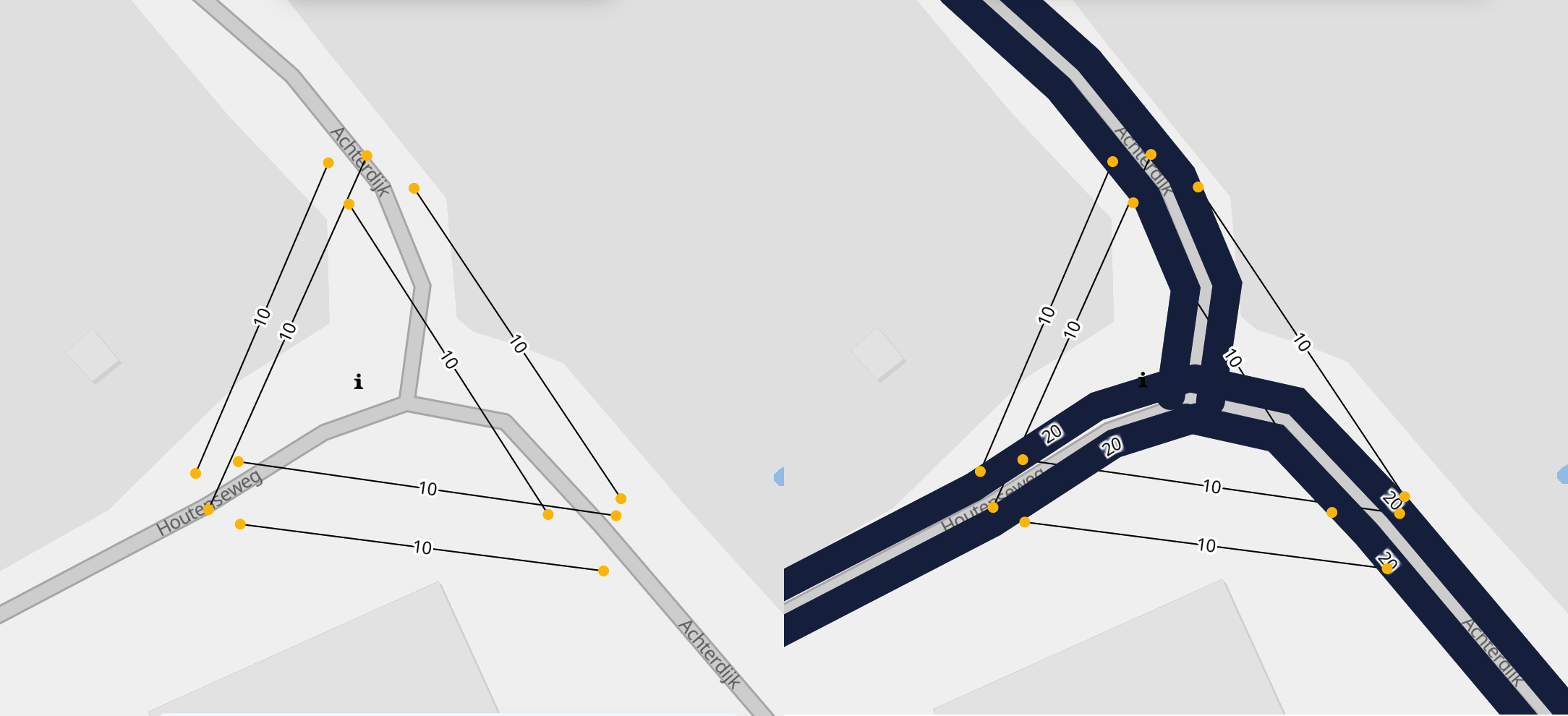
After adding traffic counters, the traffic volumes on all routes are updated to reflect the traffic counts as close as possible based on the available information. You can add as many counting points as you want, the algorithm will try to fit the OD matrix to represent the traffic counts.
5. Preview the fitted demand
Based on the defined origin–destination locations, traffic counters, and vehicle profiles the traffic demand gets estimated in a way that best matches the observed counts.
A preview of the resulting trips is calculated and shown on the map.
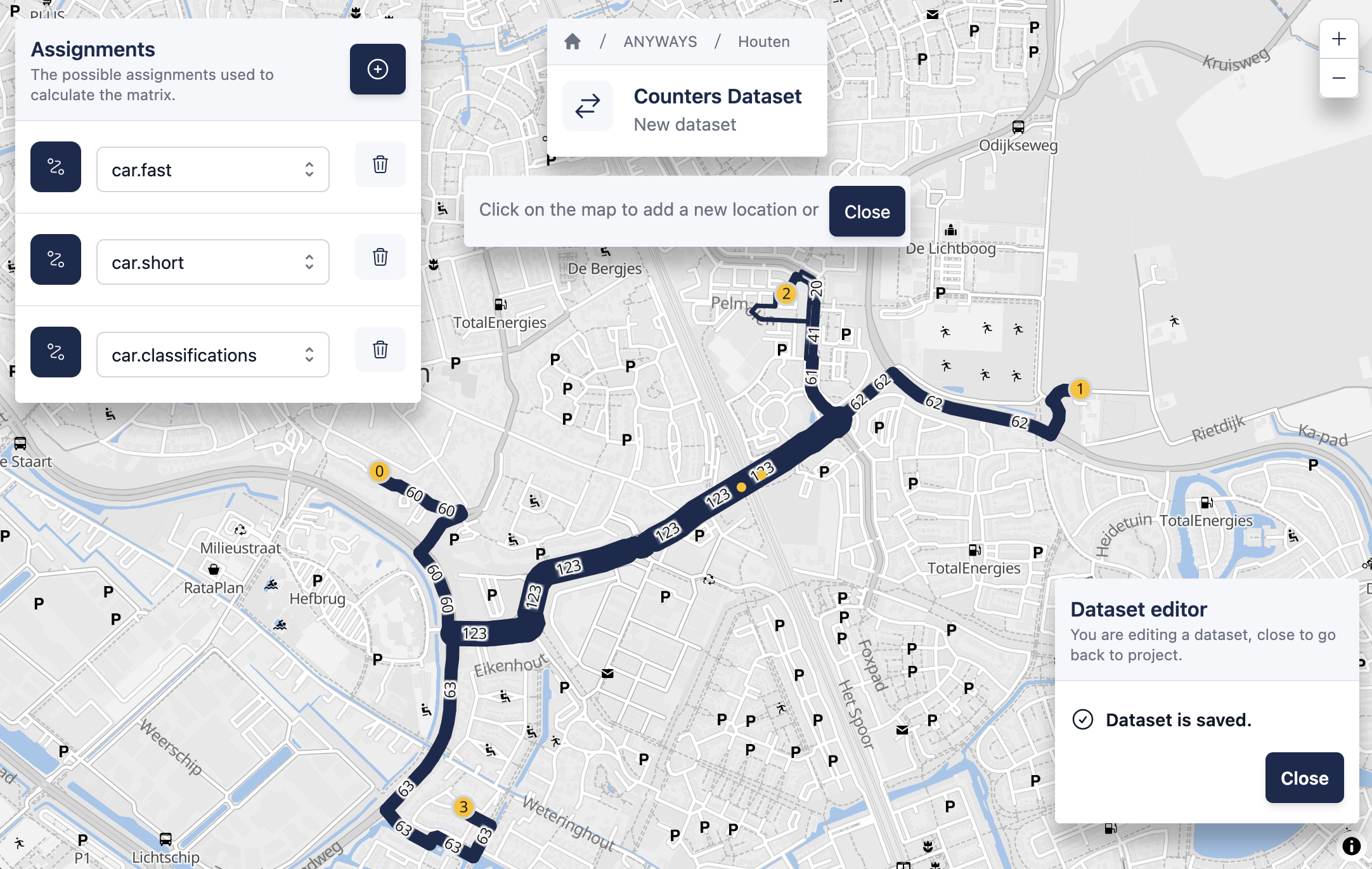
The dataset is ready and can be used in a scenario.
6. Return to project
✅ Once the calculation of demand is ready, that’s it! — you’ve simulated traffic using traffic counts.
You can close the dataset editor to return to the project.