
Delays are applied per scenario — the same delays can be attached to one scenario as a "what-if" and left off another to keep it as a baseline.
Steps
- Open your project page.
- Each scenario row has a Delays column. Click it to open a multi-select of every delays in the project.
- Pick one or more delays to attach.
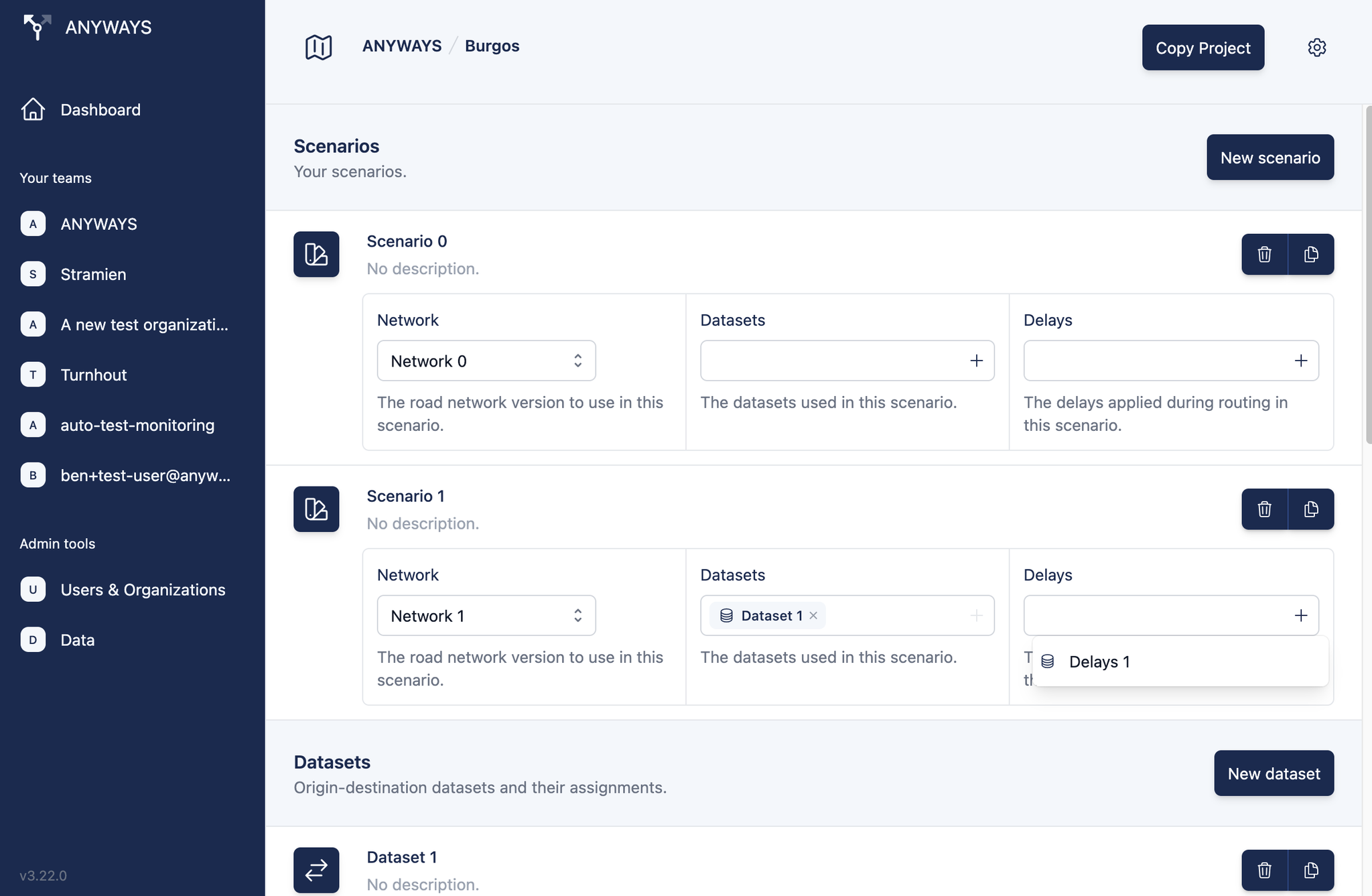
- Open the scenario. The map shows the snapped overlay for every attached delays, and route calculations use the slowdowns automatically.
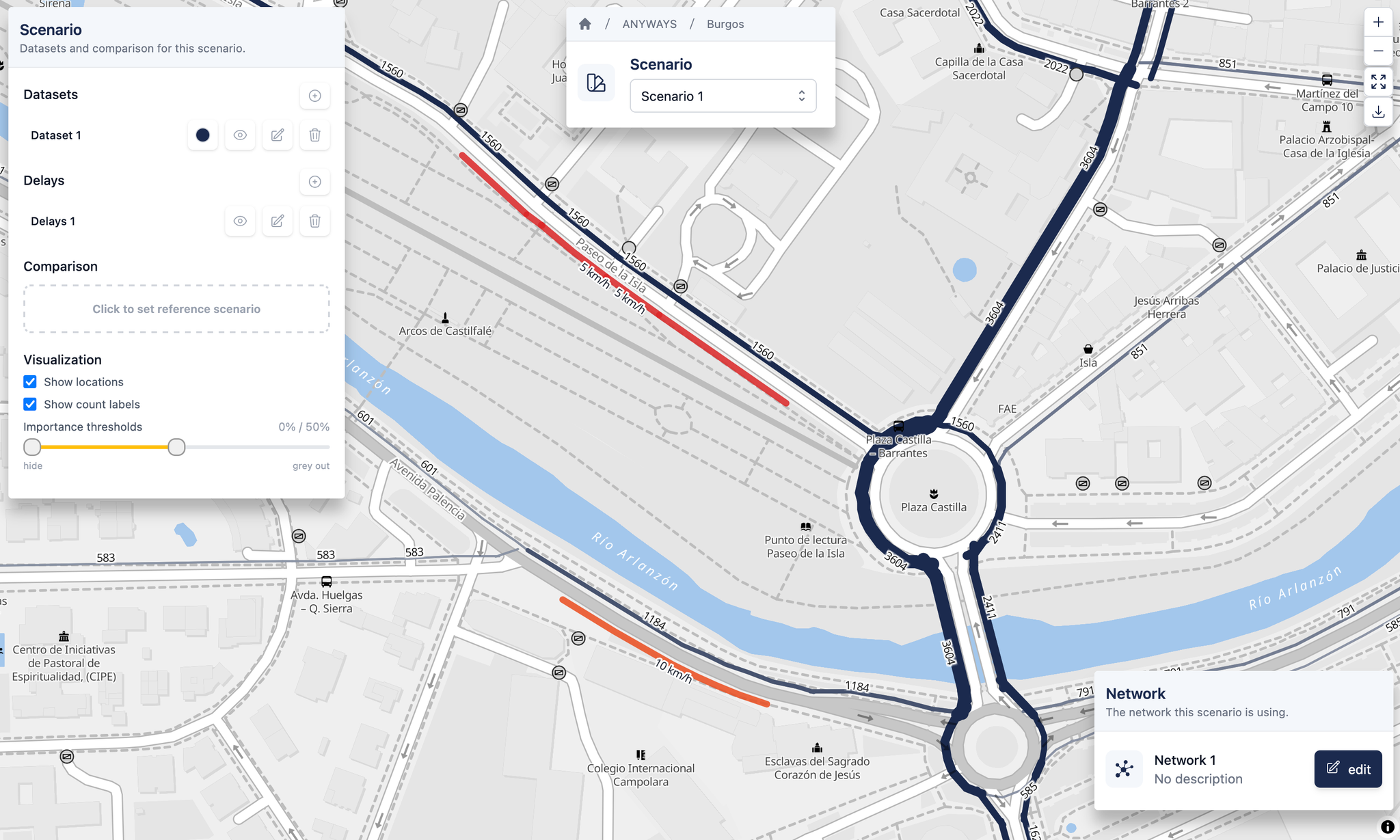
The overlay
- The coloured ribbon marks the matched road edges (same colour scale as the editor: red ≤ 5 km/h through orange ≈ 15 km/h to yellow ≥ 30 km/h).
- Per-line labels (e.g. "Line 1 · max 30 km/h" or "Line 2 · +10 s") reveal from zoom 17 to keep the overview uncluttered.
- Multiple attached delays are shown together on the same map; if two lines overlap the same road edge, the slower value wins.
Which profiles delays apply to
Delays only affect motorised-vehicle profiles (
car and bigtruck). Bicycle and pedestrian profiles ignore delays and compute routes on the underlying network as if no delays were attached.What this means in practice:
- A scenario whose dataset uses only bicycle or pedestrian profiles produces the same routes with or without delays attached.
- A mixed-profile dataset (e.g. car + bicycle) shows delays applied to the car routes but not the bicycle routes.
- On the route planner, switching from
cartobicycleremoves the delays' effect on the calculated route, even when the same delays stay attached.
Comparing with and without delays
Attach delays to Scenario 1 and leave Scenario 0 clean. Use scenario comparison to see exactly which roads picked up or shed traffic when the delays are applied.
In the route planner
Delays also show up on the route planner. Attach the same delays to a route planner network and single-route tests will pick them up too — useful for double-checking how a specific route reroutes around a bottleneck.
Related: Scenarios — how to compare a scenario with delays against a baseline scenario without them.