
Road Network Editing
This guide explains how to edit the road network in ANYWAYS.
Open the road network editor
Section titled “Open the road network editor”You can open the editor in two ways:
- From the project overview: Click Edit next to the network you want to change.
- When a scenario is open: Click Edit in the bottom-left corner of the map.
The road network editor will open.
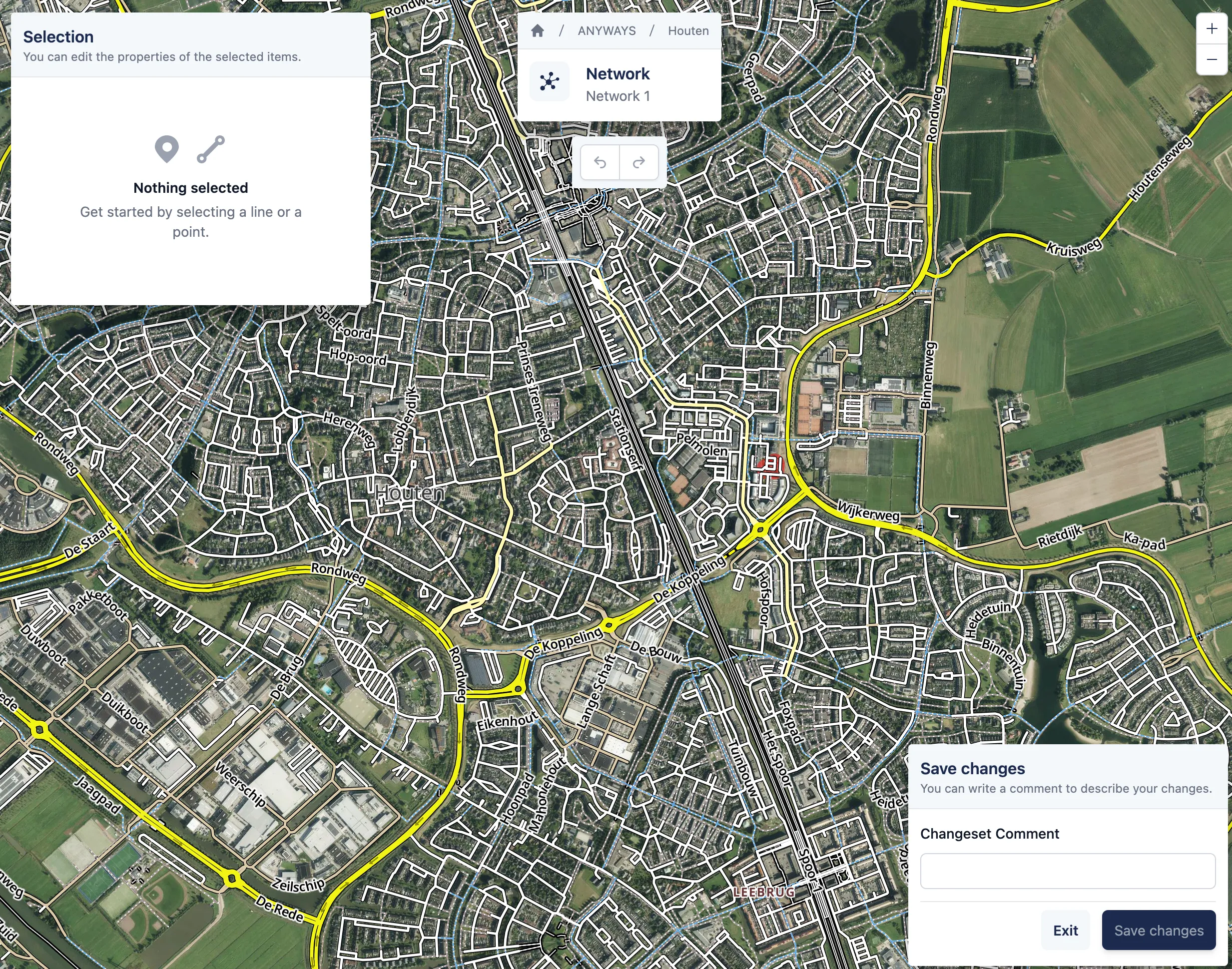
The road network open right after clicking edit.
Edit a road segment
Section titled “Edit a road segment”The steps below apply to all road network segment edits.
1. Select a road segment
Section titled “1. Select a road segment”- Zoom in on the road network
- Click on a road segment to select it
The properties of the selected segment are shown.
2. Change road properties
Section titled “2. Change road properties”Edit one or more properties of the selected road segment. You can:
- Change the maximum speed
- Edit the road classification
- Set access restrictions per vehicle type
- Close or open the road to traffic
- Change the direction (one-way or two-way)
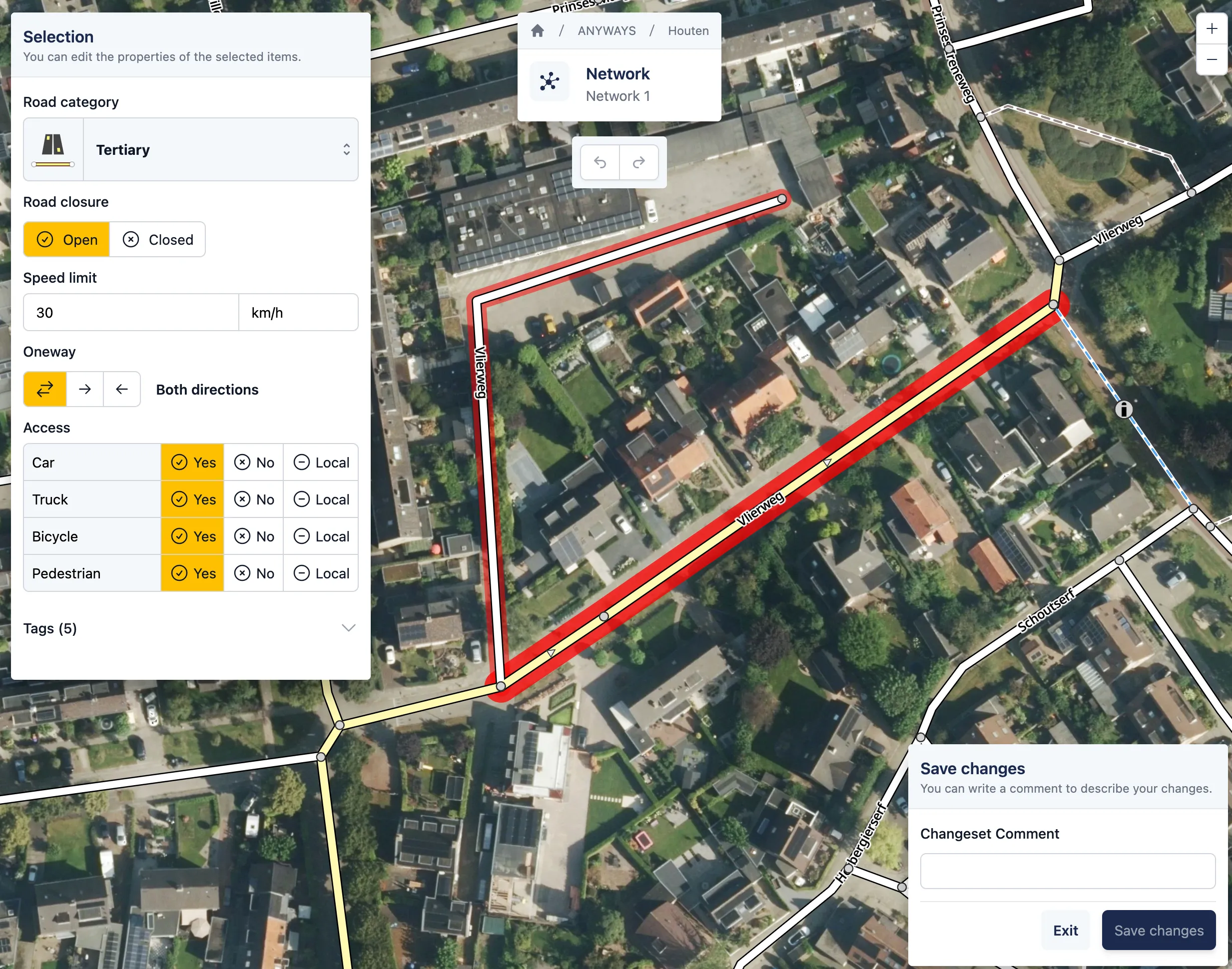
The road network editor with a road segment selected. Properties of the segment can be changed on the left.
3. Save your changes
Section titled “3. Save your changes”Click Save changes to apply the edits to the network.
The road network is now updated and can be used in scenarios, route planning, and traffic simulation.
What’s next
Section titled “What’s next”After editing the road network, you can:
- Simulate Traffic to see how the changes affect traffic patterns
- Using the route planner to compare routes using the route planner