
Using modelled routes
A modelled routes dataset takes its trips from the ANYWAYS model of everyday travel. You draw an area on the map, choose which trips to take from it, and the modelled routes through that area become the dataset.
Nothing has to be measured, counted or entered first — the model already holds the trips — so this is the quickest way to get traffic onto a network.
It is also built to be used together with traffic counts. The model knows where traffic goes; counts know how much there is. Copy the modelled routes into a traffic counts dataset and let the counts set the level, and the two together give you a baseline neither produces on its own — a realistic set of movements, scaled to what was actually measured. See Combine this with traffic counts below.
When should I use this
Section titled “When should I use this”Use a modelled routes dataset when you want a plausible picture of how traffic moves today without having to define the demand yourself:
- As the routes a traffic counts dataset calibrates — the combination above, and the main reason this dataset type exists
- A first look at the traffic through a town, a neighbourhood or a corridor
- A starting point for a study, before any counting has been done
On its own the volumes in this dataset are modelled, not observed. Where a conclusion has to rest on measured traffic, bring counts in: either calibrate these routes against them, or build a traffic counts dataset from scratch — see Using traffic counts.
What the model holds
Section titled “What the model holds”ANYWAYS models a synthetic population: individuals with a home location and daily activities — work, education, personal business — each with a modelled departure hour and a route over the road network.
Two consequences are worth knowing before you select anything:
- Trips concentrate in the peaks. The modelled activities are commutes and the return trips that follow them, so a morning or evening window holds far more than the hours between them.
- Each route carries a number of vehicles. The panel reports both: the number of trips (the origin–destination pairs that end up in the dataset) and the vehicles those trips carry.
Before you start
Section titled “Before you start”You need:
- A project in an area the model covers
1. Create the dataset
Section titled “1. Create the dataset”- Open your project
- Click New dataset
- Select Model routes through an area
- Enter a name for the dataset
The dataset editor opens with the Select data panel, ready to draw.
2. Draw the area
Section titled “2. Draw the area”Click on the map to place the corners of the area you want routes for. Double-click, press Enter, or click the first corner again to close the area. Esc abandons an area you are part way through drawing.
Once the area is closed you can keep adjusting it:
- Drag a corner to reshape the area
- Drag the small dot halfway along a segment to add a corner there
- Point at the area and click the delete button in its middle to start again
The routes your area currently selects are drawn on the map as you work, with a dot at each trip end, so you can see what every change does before you take it.
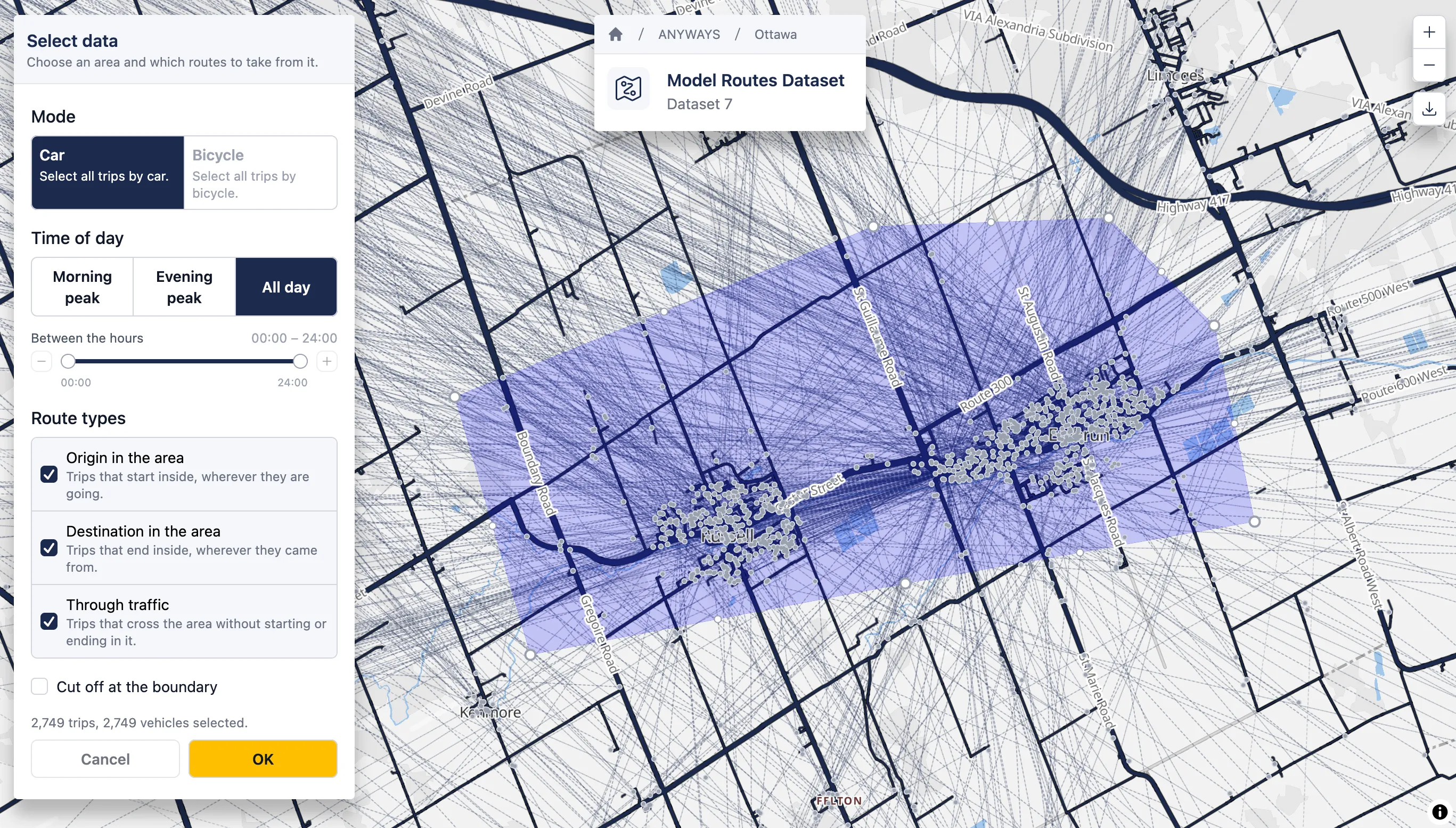
The Select data panel beside an area drawn around Russell and Embrun, with the selected trips previewed on the map.
3. Mode
Section titled “3. Mode”Choose the vehicle mode the trips are made by. Car is modelled today; bicycle is listed but not yet available.
4. Time of day
Section titled “4. Time of day”Only trips departing in the chosen window are selected.
Use one of the presets — Morning peak, Evening peak or All day — or set the window yourself by dragging the two handles on the slider. The − and + buttons at either end widen the window by an hour.
The window is read as whole hours: 08:00 – 09:00 is the hour that starts at 08:00, so the narrowest window is a single hour.
5. Route types
Section titled “5. Route types”Choose which trips the area takes. At least one is required, and they combine:
- Origin in the area — trips that start inside, wherever they are going
- Destination in the area — trips that end inside, wherever they came from
- Through traffic — trips that cross the area without starting or ending in it
A study of local traffic usually wants the first two; a bypass or a corridor study wants through traffic as well.
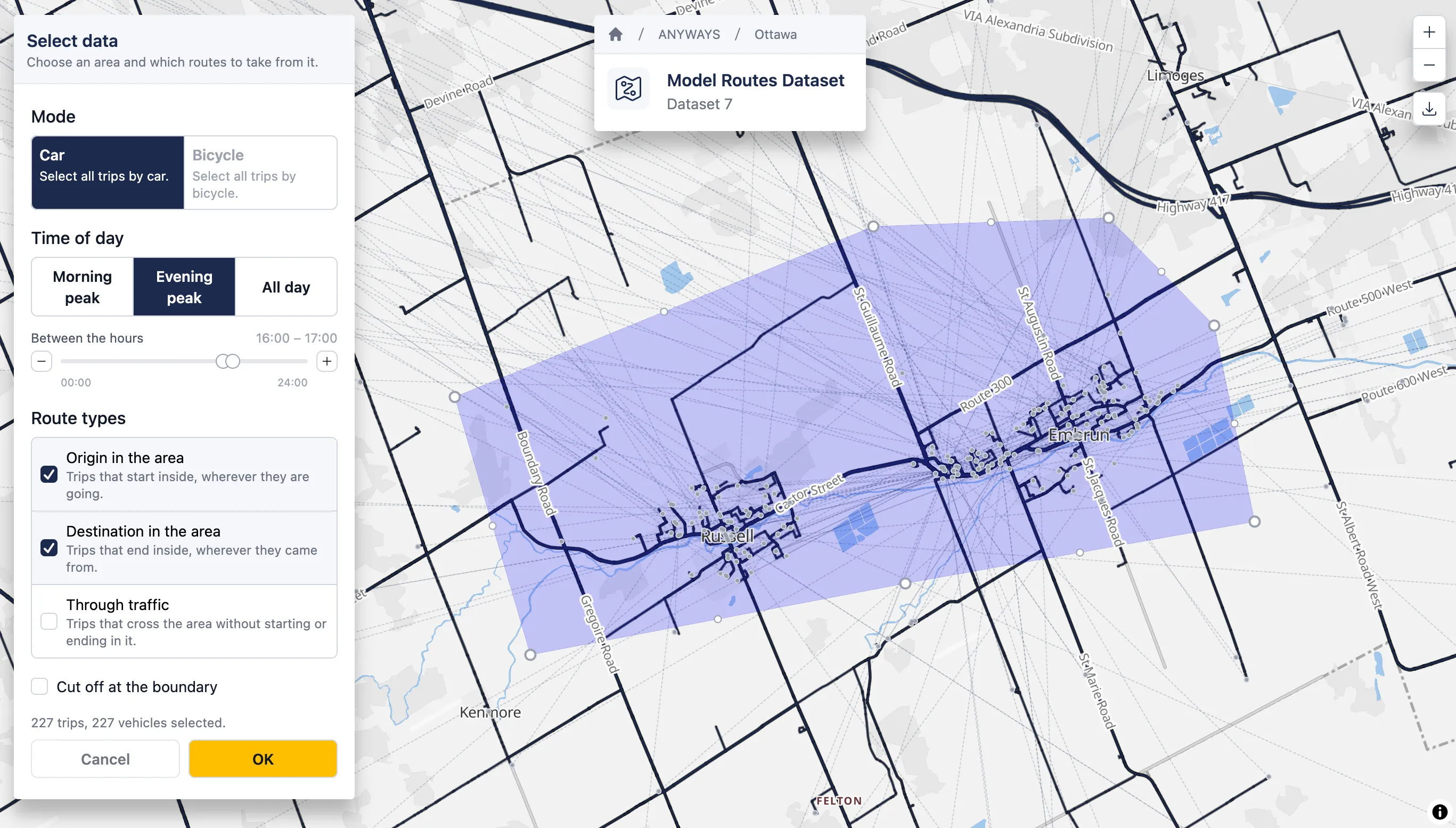
The same area with through traffic switched off and the window set to the evening peak hour. What is left is local traffic only — the 227 trips that start or end in Russell or Embrun — where the all-day selection above also carried everything merely passing between them.
6. Cut off at the boundary
Section titled “6. Cut off at the boundary”Off by default: every trip keeps its real origin and destination, however far outside the area they lie, and the dataset describes whole journeys that touch the area.
Turn it on to clip the trips to the area. A trip’s origin and destination become the points where its route enters and leaves, so the dataset describes only the traffic inside the area. Because many trips then enter and leave at the same places, cutting off also collapses the selection into far fewer distinct origin–destination pairs — which is one way to bring a large selection under the limit below.
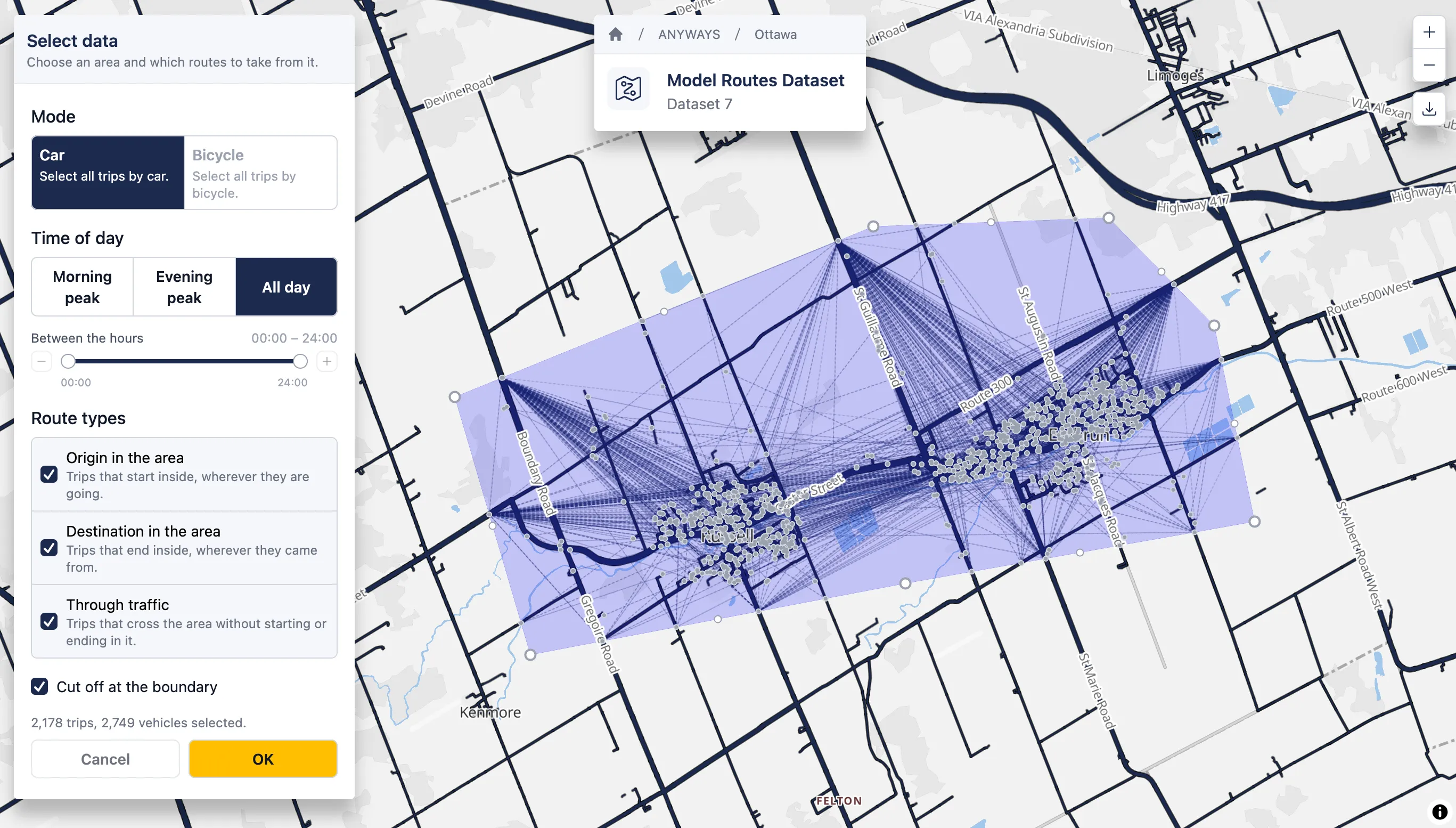
The same area and settings as above, with cut off at the boundary turned on. The trips no longer run off across the map: each one is clipped to the area and its endpoints land on the outline. The selection drops from 2,749 trips to 2,178 while still carrying all 2,749 vehicles, because trips crossing at the same places now share an origin–destination pair.
7. Check what is selected
Section titled “7. Check what is selected”Above the buttons the panel reports what the area currently holds, for example “1,284 trips, 7,310 vehicles selected”.
A dataset built this way can hold 20,000 trips. Above that the line turns red, OK is disabled, and the message names the three ways out: draw a smaller area, turn on cut off at the boundary, or narrow the route types.
8. Apply the selection
Section titled “8. Apply the selection”Click OK. The selected routes are written into the dataset as trips, each with the vehicle count and routing profile the model gave it.
Cancel backs out to the dataset as it was, so it only becomes available once a selection has been applied — until then there is nothing to go back to.
9. Review, change, download
Section titled “9. Review, change, download”With a selection applied the panel becomes Model routes and summarises what the dataset was built from: route types, modes, departure window and whether trips are cut off at the boundary.
- Change selection reopens the panel. Changing a setting without applying it leaves a note that the data on the map no longer matches the settings; apply again to rebuild it.
- The download button above the panel exports the dataset’s routes as GeoJSON.
10. Return to project
Section titled “10. Return to project”✅ That’s it — you’ve built a dataset from modelled routes.
You can close the dataset editor to return to the project, and add the dataset to a scenario like any other.
Combine this with traffic counts
Section titled “Combine this with traffic counts”This is what the dataset type was built for. A modelled routes dataset answers where does traffic go, and traffic counts answer how much there is — together they produce a baseline that is both realistic in its movements and correct in its volumes.
To do it:
- Build the modelled routes dataset as described above
- Create a Traffic counts dataset in the same project
- Choose Use an existing dataset and select your modelled routes dataset — its routes are copied in, and the original is left untouched
- The new dataset opens set to Calibrate the source: the counters you add set the level the copied routes are scaled to, rather than having to carry the traffic by themselves
- Add your counters, from your own counts or from count data available for the area
The alternative — placing origins and destinations by hand and fitting counts onto them — remains available and is the right approach when you have no model coverage, or when the movements you care about are not everyday travel. What you get from the combination is a far richer set of origin–destination pairs than anyone would draw manually, and no need to guess at which movements exist.
See Using traffic counts for the counters half of the workflow.